
Quick View settings
Go to WooCommerce → Quick View. The screen is only available to users who can manage WooCommerce (shop managers and administrators). Click Save Changes after editing.
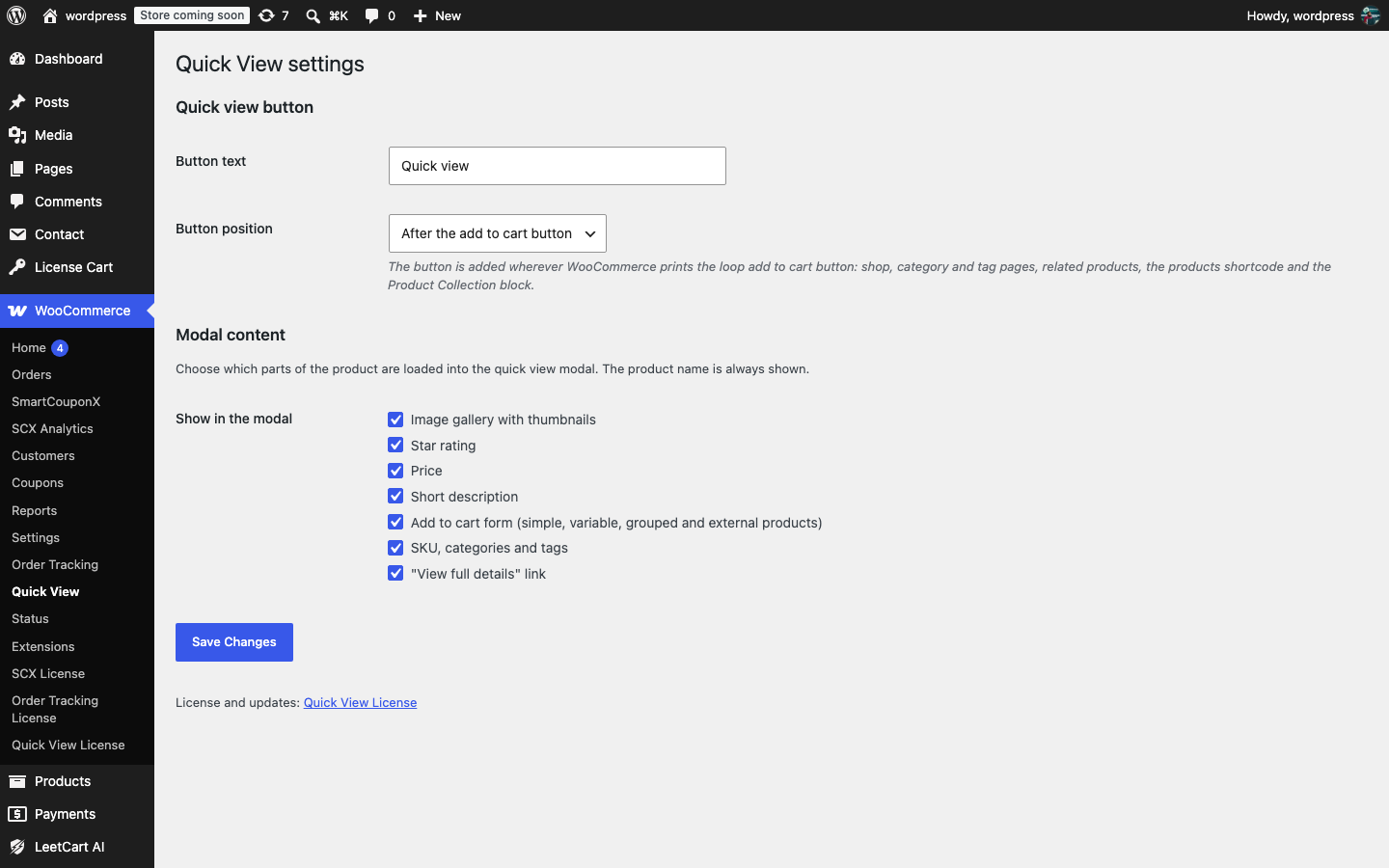
Quick view button#
| Setting | What it does | Default | Recommended |
|---|---|---|---|
| Button text | The label printed on the button in your listings. Plain text only; HTML is stripped. If you leave it empty, the default is used. | Quick view | Keep it short so it fits next to the add to cart button on narrow product cards. “Quick view”, “Preview” and “Quick look” all work well. |
| Button position | Whether the button is printed before or after the add to cart button. | After the add to cart button | After keeps the add to cart button in the position shoppers expect. Choose Before if your theme styles the first button in a card more prominently and you want quick view to stand out. |
The button is added wherever WooCommerce prints the loop add to cart button: shop, category and tag pages, related products, the products shortcodes and the Product Collection block. There is no per-page switch; developers can hide the button for specific products with the ankpqv_show_button filter described in the Developer reference.
Modal content#
The Show in the modal group is a list of checkboxes. The product name is always shown; everything else can be switched off. All elements are on by default.
| Element | What the shopper sees | Tip |
|---|---|---|
| Image gallery with thumbnails | The featured image, plus a row of thumbnail buttons when the product has gallery images. The image follows the chosen variation. | Switch off only if your product images are not useful at a glance, for example for services. |
| Star rating | The average star rating and review count, as on the product page. | Only appears when reviews and ratings are enabled in WooCommerce → Settings → Products and the product has reviews. |
| Price | The price, including sale prices and variable price ranges, formatted by WooCommerce. | Leave on. |
| Short description | The product’s short description. Nothing is shown for products without one. | Keep short descriptions to two or three sentences so the modal stays compact. |
| Add to cart form (simple, variable, grouped and external products) | WooCommerce’s own add to cart form for the product type. | Switch off if you want the modal to work as a preview only and send shoppers to the product page to buy. |
| SKU, categories and tags | The product meta block from the product page. | Switch off if you do not use SKUs or do not want tags visible to shoppers. |
| “View full details” link | A link to the full product page at the bottom of the modal. | Leave on so shoppers can always reach the full description, reviews and additional information. |
The settings are stored in a single option named ankpqv_settings. Saving the settings never touches your products or any other WooCommerce data.