
Activating your license
Your license key unlocks plugin updates and support for the number of sites in your plan. The gate itself works without a key, but you will not receive updates until the key is active.
Where to find your key#
The key is shown at the end of checkout and under License keys in your account dashboard at technoleet.dev.
Activate the key#
- Go to Plugins and make sure Premium Update Gate is active (network-activated on multisite).
- Open Update Gate → License (in the Network Admin on multisite).
- Paste the key into the License Key field.
- Click Activate License.
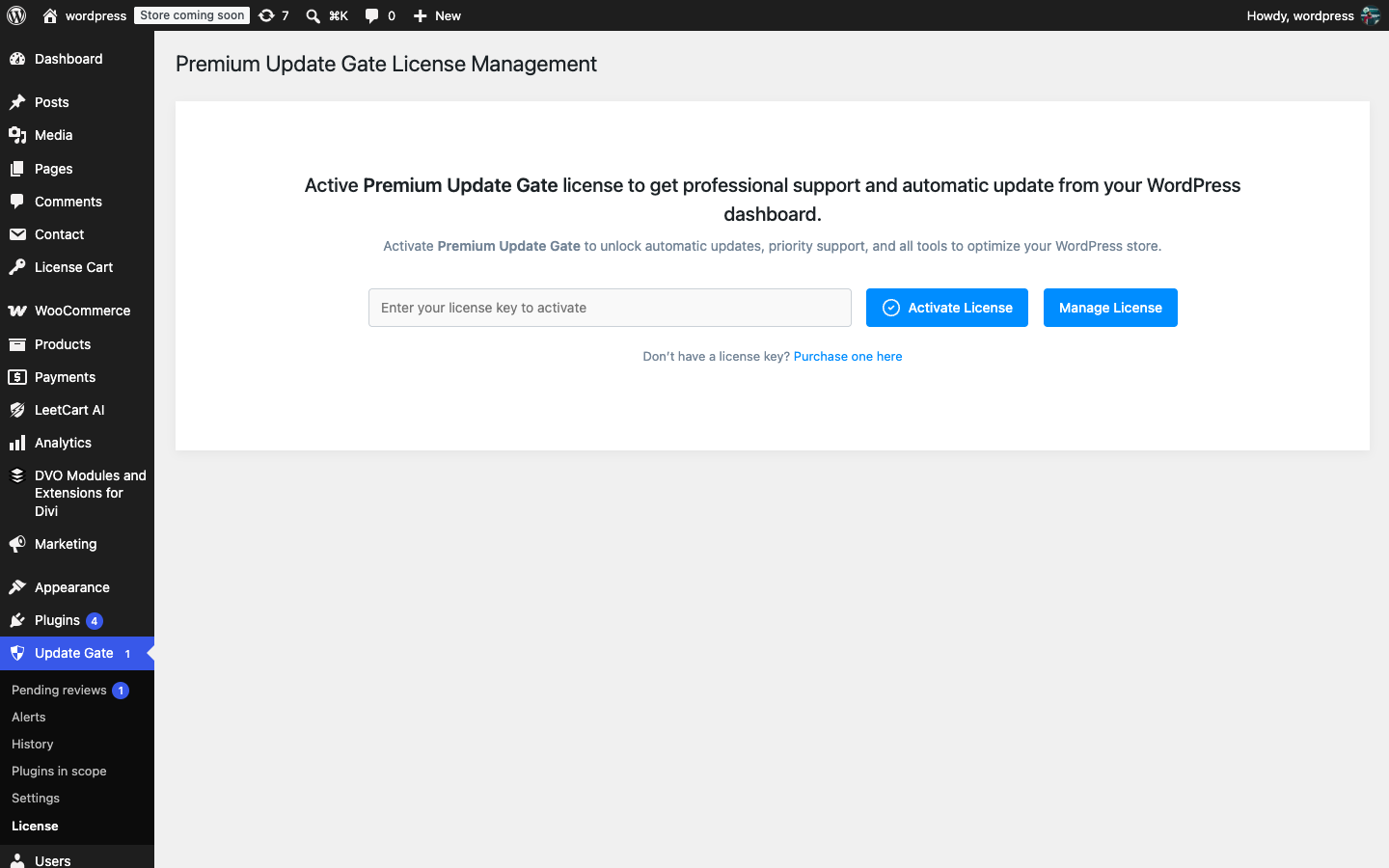
The screen then shows Status: Active, the expiry date, how many activations remain in your plan, when the license was last checked, and Automatic Update: Enabled. Use the Check License Status Now button to re-check immediately, and Manage License to open your account on the store.
What activation sends#
Activation, deactivation and the daily re-check contact technoleet.dev with the license key, the site URL, the plugin version and the WordPress and PHP versions. No usage statistics are collected and no promotional content is loaded.
Background checks and offline grace#
The license is re-checked once a day in the background; the plugin never calls the license server during a normal page load. If the store cannot be reached, a valid license keeps working for 14 days. After that the plugin shows “Could not verify your license and the grace period has ended” until a check succeeds.
You can activate the same key on local and staging sites. Each activation counts towards your plan’s site limit, so deactivate the key before you retire a staging copy.