
The Conditional Display panel
Where to find it#
- Edit a page or post.
- Select any Section Blocks block, a section (Hero, Pricing Tables, FAQ, Call to Action, …) or an element (Advanced Heading, Icon Box, Promo Banner, …).
- Open the block settings sidebar and expand Conditional Display (Pro). It is collapsed by default and sits below the block’s own settings.
The panel is only added to blocks from the free Section Blocks plugin. Core blocks and blocks from other plugins do not get it. If you need to hide a group of mixed blocks, place them inside a Section Blocks Advanced Container and set the condition on the container.
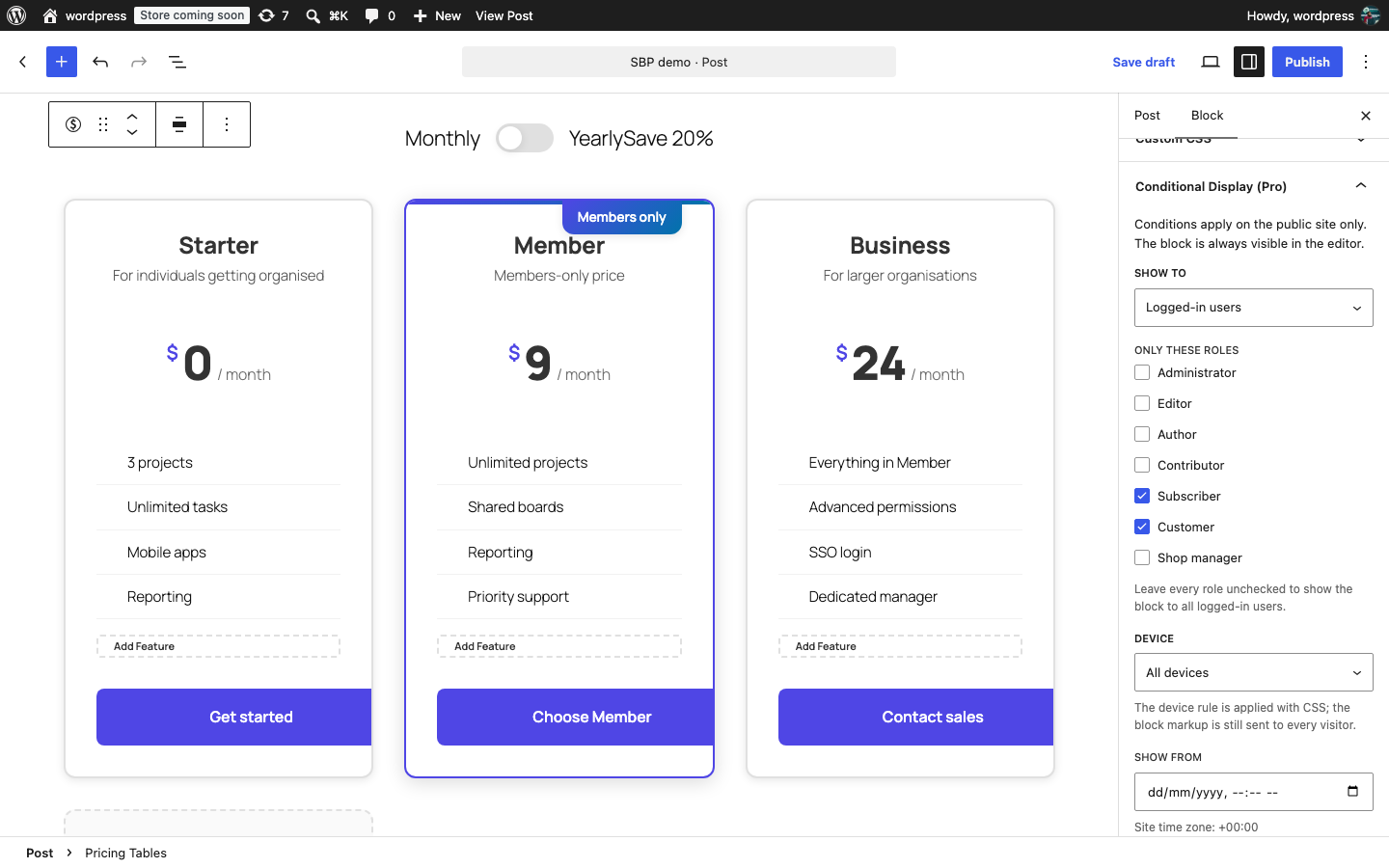
The controls#
| Control | Options | Default |
|---|---|---|
| Show to | Everyone, Logged-in users, Logged-out visitors | Everyone |
| Only these roles | One checkbox per role on your site (shown only when “Show to” is Logged-in users) | None checked = all logged-in users |
| Device | All devices, Mobile only (under 768px), Desktop and tablet only (768px and up) | All devices |
| Show from | Date and time picker, site time zone | Empty = no start |
| Show until | Date and time picker, site time zone | Empty = no end |
The panel shows your site’s time zone next to the date fields (for example “Site time zone: Europe/London”) so you always know which clock the dates use.
How the rules combine#
All rules on a block must pass for it to be shown. A block set to Logged-in users, role Customer, Mobile only, from 1 December until 31 December is shown only to customers, only on phones, only in December. Leave a rule at its default to ignore it.
In the editor#
The block is always visible in the editor, whatever conditions it carries. When at least one condition is set, a small note at the top of the panel reminds you of this. To see the result, view the page on the public site, logged out in a private window if you are testing login rules.
Removing a condition#
Set Show to back to Everyone, Device back to All devices and clear both date fields. Choosing Everyone also clears any roles you had ticked.