
Recipes
Four common setups, step by step. Each assumes Pro is active and you are editing a page.
1. Members-only pricing#
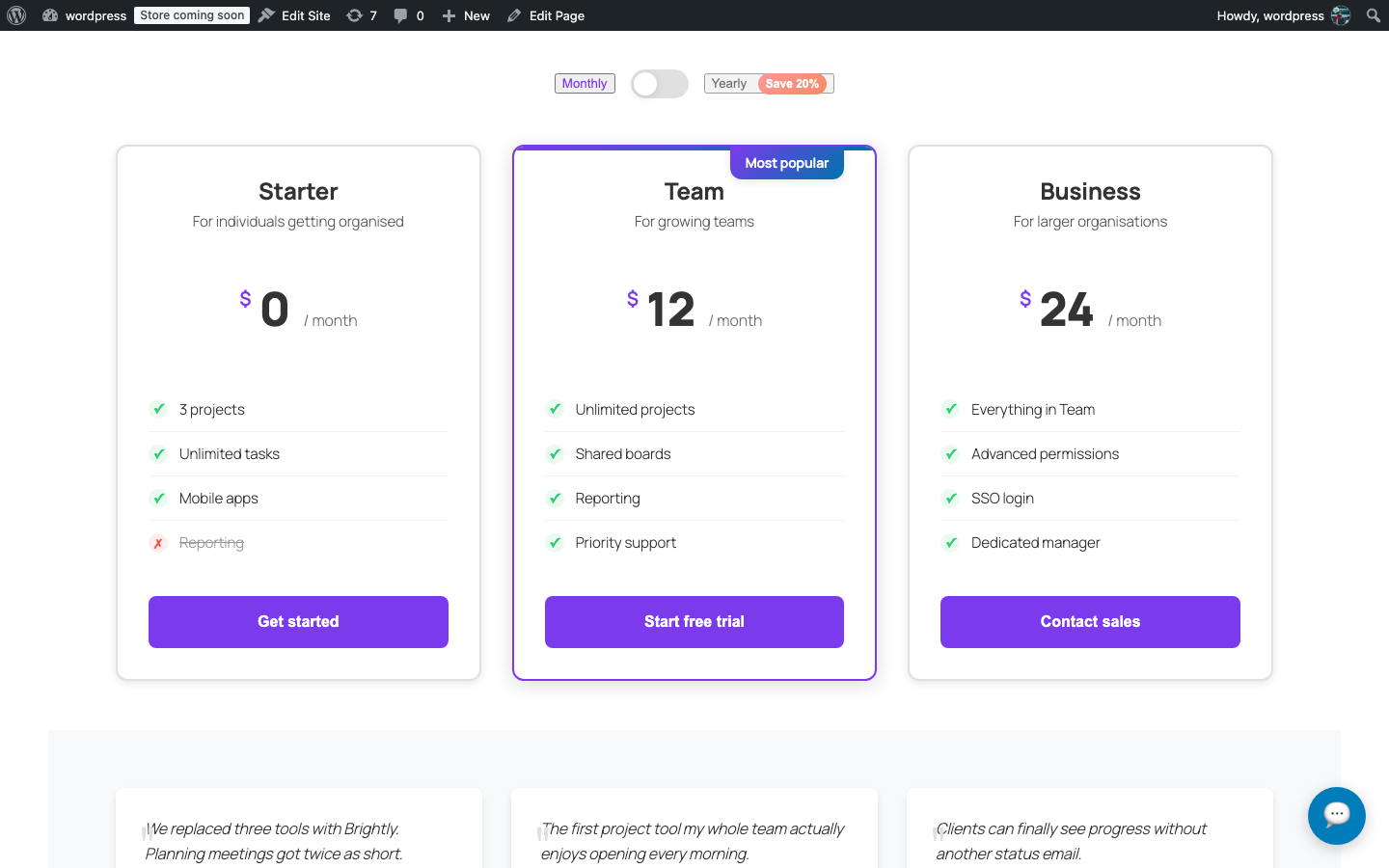
Show a Pricing Tables block to logged-in members only, and tell guests to sign in.
- Add a Pricing Tables block and set up your plans.
- Expand Conditional Display (Pro) and set Show to to Logged-in users.
- If only some roles should see it (for example Subscriber and Customer), tick those roles under Only these roles. Leave all unticked to include every logged-in user.
- Below it, add a Callout block with a message such as “Sign in to see member pricing” and a link to your login page.
- On the Callout, set Show to to Logged-out visitors.
- Publish. Guests see the callout; members see the pricing table. Neither group receives the other block’s HTML.
2. A call to action for logged-out visitors only#
Invite guests to create an account without nagging existing users.
- Add a Call to Action block with a heading like “Join free today” and a button to your registration page.
- Expand Conditional Display (Pro) and set Show to to Logged-out visitors.
- Optionally add a second Call to Action for members (“Go to your dashboard”) and set it to Logged-in users.
- Publish and check both states: once in a private window, once signed in.
3. A mobile-only banner#
Show a compact Promo Banner on phones and a full Hero on larger screens.
- Add a Promo Banner block with a short message and one button.
- Expand Conditional Display (Pro) and set Device to Mobile only (under 768px).
- Add a Hero Section block below it with the full-size version.
- On the Hero, set Device to Desktop and tablet only (768px and up).
- Publish. Resize your browser window across 768px to watch them swap.
Both blocks are in the page source; CSS decides which one is displayed. This keeps page caching simple but means the hidden one still loads its images. Keep mobile-only banners light.
4. A scheduled promo#
Run a Black Friday banner from Friday morning until Sunday night without touching the site over the weekend.
- Confirm the site time zone under Settings → General → Timezone.
- Add a Promo Banner (or any section) with your offer.
- Expand Conditional Display (Pro).
- Set Show from to the start, for example
2026-11-27 00:00. - Set Show until to the end, for example
2026-11-29 23:59. - Publish now. The banner stays hidden until Friday and disappears after Sunday.
- If you use a page cache, clear it (or set its lifetime short) around the start and end times, see How rules are enforced.
Was this article helpful?
Tell us what was missing