
Customer Portal
The My Licenses page#
On activation License Cart publishes a My Licenses page at /my-licenses/ containing the [lc_portal] shortcode. You can move the shortcode to any page; License Cart remembers which page holds it and uses that URL in emails and checkout redirects.
Logging in without a password#
Visitors who are not logged in see a Purchase Email form. Entering the email used at checkout sends [Site Name] Your secure license login link, a one-click link that expires in 30 minutes. Expired or reused links send the visitor back to the form with an explanation. Unknown emails are silently ignored so the form cannot be used to discover who your customers are.
Buyers arriving straight from Paddle checkout are logged in automatically (see Selling with the Buy Button).
What customers see#
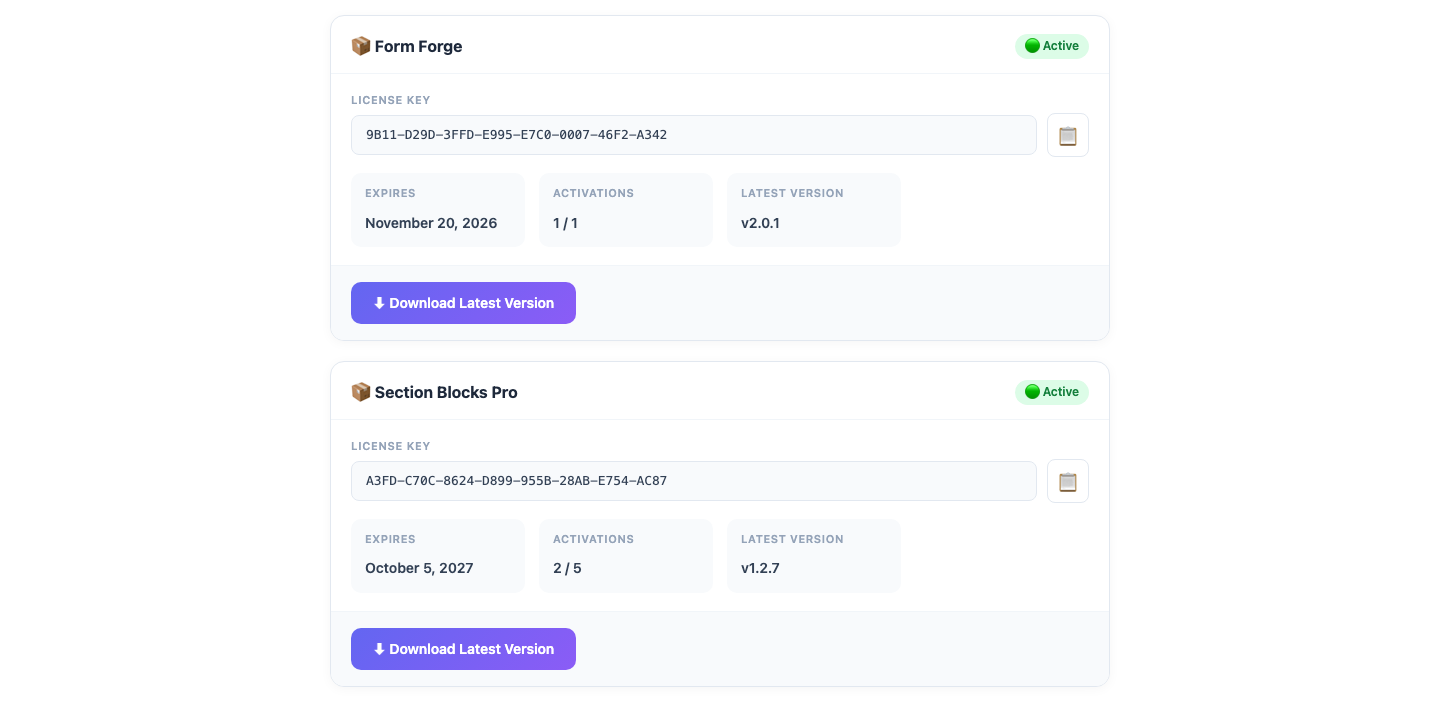
Each license is shown as a card with:
- product name and status badge (active, inactive, expired or revoked),
- the license key with a copy button,
- expiry date or “Never (Lifetime)”,
- activations used versus the limit,
- the latest version number, and
- a Download Latest Version button that generates a signed five-minute download link. Expired or revoked licenses show “License Expired — Renew to Download” instead.
A Log Out link and the login email are shown in the header.
Keeping customers out of wp-admin#
Customers are ordinary WordPress users with the Subscriber role. When a user who has a License Cart customer record tries to open wp-admin, they are redirected to the portal instead. Other subscriber accounts (membership users, commenters) are not affected. Developers can change this with the license_cart_redirect_customers_from_admin filter.
Shortcode#
[lc_portal]The portal shortcode takes no attributes. Its CSS is inlined only on pages that contain it.