
Quick Start
From a fresh install to the first license#
The dashboard shows the same four steps with a Quick Start checklist.
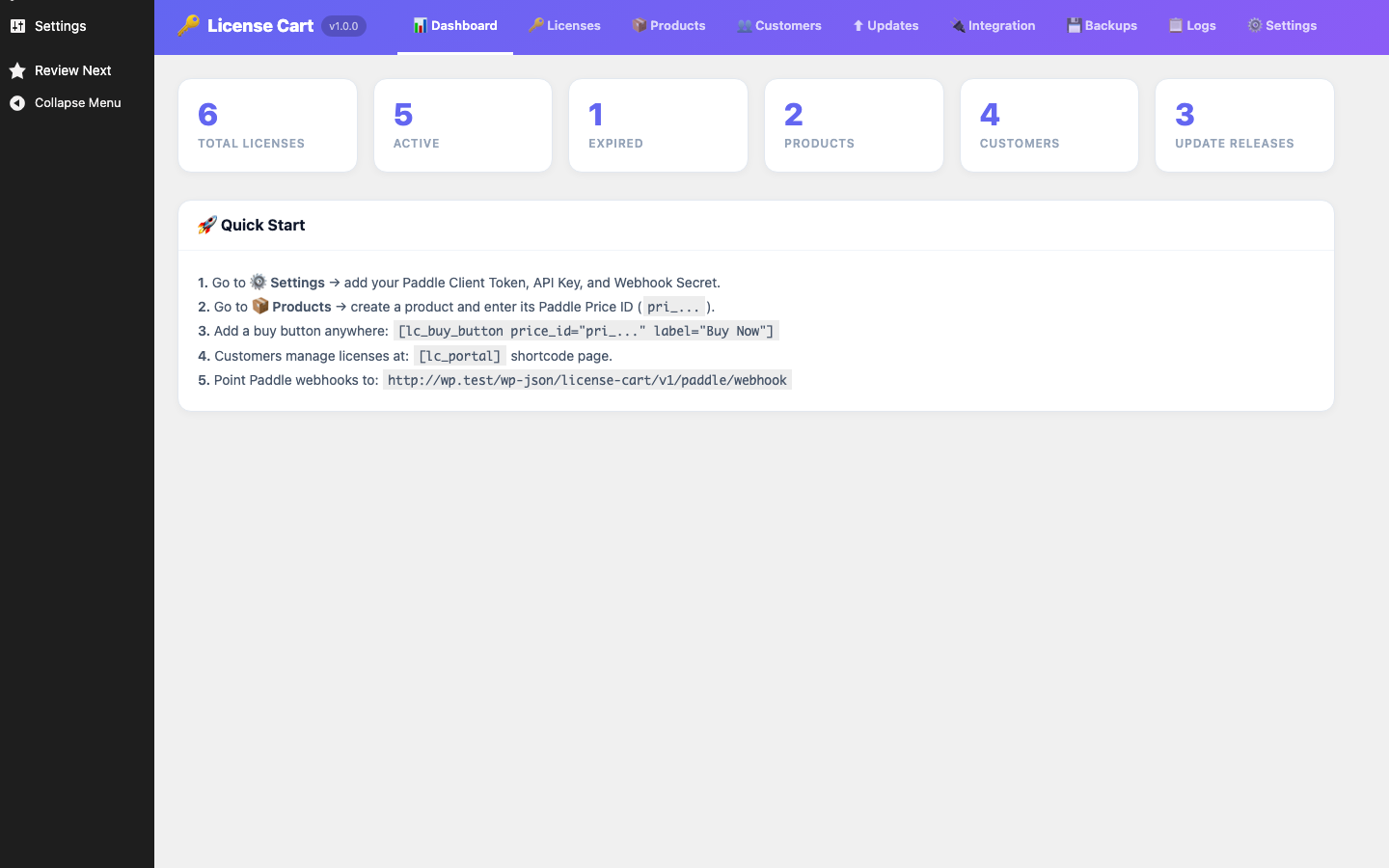
- Enter Paddle sandbox credentials. Open License Cart → Settings, keep Active Environment on Sandbox (Test Mode) and fill in Sandbox Client-side Token, Sandbox API Key and Sandbox Webhook Secret from your Paddle sandbox dashboard. Click Save Settings. (Details in Connecting Paddle.)
- Register the webhook in Paddle. Copy the Webhook URL shown at the bottom of Settings (
https://your-site.com/wp-json/license-cart/v1/paddle/webhook) and add it as a notification destination in Paddle Sandbox → Developer Tools → Notifications with the eventstransaction.completed,subscription.canceled,subscription.pausedandsubscription.resumed. - Create a product. On the Products tab click + New Product, enter a name and click Create Product. The product is created in Paddle at the same time and its
pro_…ID is stored. - Add a pricing package. Click Prices next to the product, then + Add Package. Give it a name (for example “1 Site”), a USD price, a license type (Lifetime or Subscription (yearly)) and an activation limit. The package becomes a Paddle price (
pri_…). - Upload a release. On the Updates tab click + New Release, pick the product, enter a version such as
1.0.0, choose the plugin ZIP and click Upload & Publish. - Place the buy button. Edit any page and add
[lc_buy_button price_id="pri_xxx" label="Buy now"], using thepri_…ID from the package you created. - Make a test purchase. Visit the page, click the button and pay with a Paddle sandbox test card. Within a few seconds the webhook creates the customer and license, the portal page logs the buyer in automatically, and the key is emailed.
- Check the result. The Licenses tab lists the new key; the Logs tab shows the
transaction.completedevent assuccess.
When everything works, switch Active Environment to Live, enter your live credentials and register the same webhook URL in your live Paddle account.
Was this article helpful?
Tell us what was missing