
Settings
All settings live on one screen under WooCommerce → Order Tracking and are saved together with the Save Changes button at the bottom. Only users who can manage WooCommerce (shop managers and administrators) can open the screen.
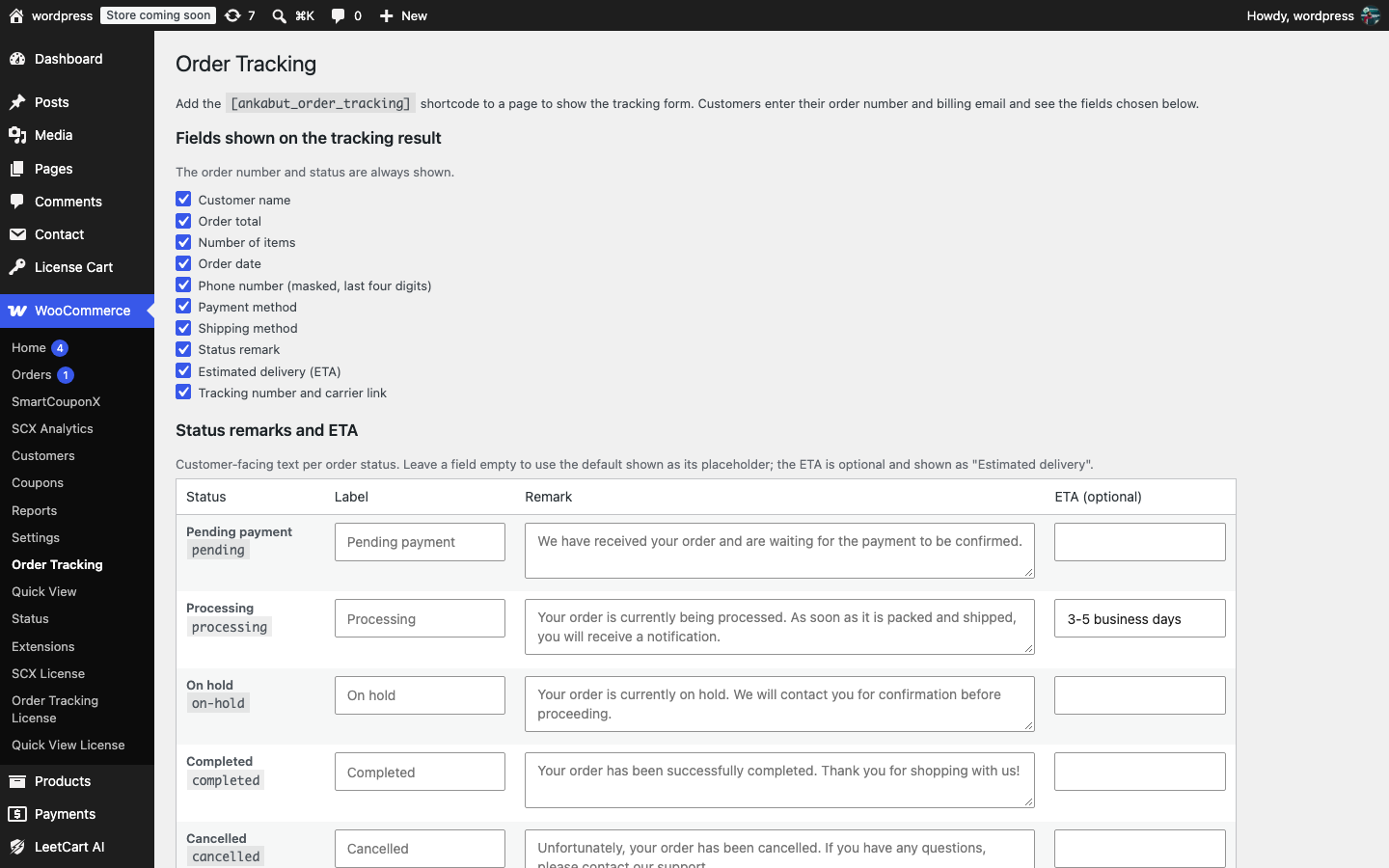
Fields shown on the tracking result#
Tick the details you want the tracking card to show. The order number and order status are always shown and cannot be switched off. All fields are enabled by default.
| Field | What the customer sees | Notes |
|---|---|---|
| Customer name | “Customer Name:” with the billing first and last name | Hidden when the order has no billing name |
| Order total | “Order Amount:” with the formatted order total | Uses the order’s currency |
| Number of items | “Total Items:” with the item count | |
| Order date | “Order Date:” with the order creation date | Formatted with your WooCommerce date settings |
| Phone number (masked, last four digits) | “Phone Number:” with all digits but the last four replaced by * | Hidden when the order has no billing phone |
| Payment method | “Payment Method:” with the payment method title | Hidden when the order has none |
| Shipping method | “Shipped Via:” with the shipping method name | Hidden when the order has none |
| Status remark | “Remarks:” with the remark for the order’s status | Hidden when the remark is empty |
| Estimated delivery (ETA) | “Estimated Delivery:” with the ETA for the order’s status | Hidden when the ETA is empty |
| Tracking number and carrier link | “Tracking Number:” with the number linked to the carrier page and the carrier name in brackets | Hidden when the order has no tracking number |
Recommended for a typical store: keep everything enabled. If you prefer to show less personal information, untick Customer name and Phone number.
Status remarks and ETA#
This table lists every order status registered on your store, including custom statuses added by other plugins, one row per status. Each row has three fields:
| Field | What it is for | If left empty |
|---|---|---|
| Label | The status name shown to the customer, for example “Shipped” instead of “Completed” | The plugin default, shown as the field’s placeholder, is used; if there is none, WooCommerce’s own status name |
| Remark | One or two sentences explaining what the status means and what happens next | The plugin default is used; if there is none, no “Remarks” line is shown |
| ETA (optional) | Free text shown as “Estimated Delivery”, for example “3-5 business days” or “By Friday” | No “Estimated Delivery” line is shown |
The plugin ships with these defaults:
| Status | Default label | Default remark | Default ETA |
|---|---|---|---|
pending | Pending payment | We have received your order and are waiting for the payment to be confirmed. | |
processing | Processing | Your order is currently being processed. As soon as it is packed and shipped, you will receive a notification. | |
on-hold | On hold | Your order is currently on hold. We will contact you for confirmation before proceeding. | |
completed | Completed | Your order has been successfully completed. Thank you for shopping with us! | |
cancelled | Cancelled | Unfortunately, your order has been cancelled. If you have any questions, please contact our support. | |
refunded | Refunded | Your order has been refunded. Depending on your bank, it can take a few days for the amount to appear on your statement. | |
failed | Payment failed | The payment for this order did not go through. Please try placing the order again or contact our support. | |
shipped | Shipped | Your order has been shipped and is on its way. | 1-3 business days |
awaiting-shipment | Awaiting shipment | Your order is awaiting shipment. We will notify you once it has been shipped. | |
return | Returned | Your order has been returned. We apologize for any inconvenience caused. | |
not-confirmed | Not confirmed | Your order is not yet confirmed. Our team will review and verify your order details. |
The last four statuses only appear in the table when a plugin on your store registers them. Statuses without a default (other custom statuses) show WooCommerce’s name as the label and no remark until you fill the row in.
Only type into a field when you want to change it. Empty fields keep following the defaults, which means the default texts are also translated automatically if you run your store in another language.
Carrier tracking links#
These two settings control the link behind the tracking number on the tracking card.
| Setting | Format | Default | |
|---|---|---|---|
| Carriers | One carrier per line as `Name \ | URL template.{tracking_number}` in the template is replaced with the order’s tracking number. The name must match what is entered on the order (case does not matter). | UPS, FedEx, USPS, DHL and Royal Mail |
| Generic link template | A single URL template used when the order’s carrier is not in the list above. Supports {tracking_number} and {carrier}. Leave empty to show the tracking number as plain text without a link. | https://www.google.com/search?q={carrier}+{tracking_number} |
The default carrier list:
UPS | https://www.ups.com/track?tracknum={tracking_number}
FedEx | https://www.fedex.com/fedextrack/?trknbr={tracking_number}
USPS | https://tools.usps.com/go/TrackConfirmAction?tLabels={tracking_number}
DHL | https://www.dhl.com/en/express/tracking.html?AWB={tracking_number}
Royal Mail | https://www.royalmail.com/track-your-item#/tracking-results/{tracking_number}
To add a carrier, find the tracking URL on the carrier’s website, replace the tracking number in it with {tracking_number}, and add a line such as:
Australia Post | https://auspost.com.au/mypost/track/#/details/{tracking_number}How the link is chosen for an order:
- If the order’s carrier matches a name in the Carriers list, that line’s template is used.
- Otherwise the Generic link template is used (with
{carrier}filled in from the order). - If the generic template is empty too, the tracking number is shown without a link.
The tracking number and carrier are URL-encoded before they are inserted, so spaces and special characters are safe.
Templates must start with http:// or https://. A generic template that does not is cleared when you save. Lines in the Carriers list without a |, or with an empty name or URL, are ignored.