
License
A license key is required for automatic updates and support. The scanner itself works without a key, but you will not receive new rules, bug fixes or help until the license is active.
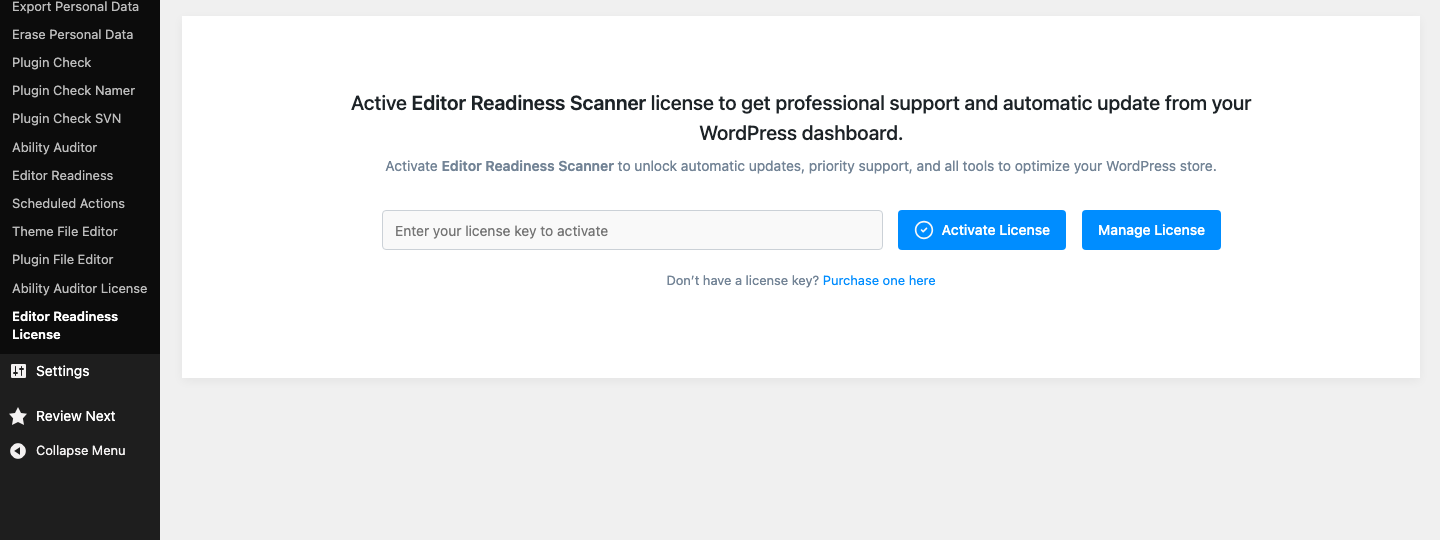
Activate your license#
- Find your key in your technoleet.dev account under Dashboard → License Keys.
- In wp-admin go to Tools → Editor Readiness License.
- Paste the key into the License Key field.
- Click Activate License.
The screen then shows the license Status, when it was Last Checked, the Expires date, Activation Remaining (how many sites of your plan’s limit are still free) and whether Automatic Update is enabled. Use the Manage License link to open your technoleet.dev dashboard.
How the license check works#
- Activation is a single request to technoleet.dev. After that the license is re-checked in the background about once a day. The plugin never calls the license server during a normal page load.
- If technoleet.dev cannot be reached, a previously valid license keeps working for a 14-day grace period. When the server becomes reachable again the normal daily check resumes.
- Activation is allowed on local and development hosts, so you can test on
.testor.localsites. Each activation counts towards your plan’s site limit.
Renewals#
Starting 14 days before your license expires, administrators see a dismissible notice with a Renew license button. Renew from your technoleet.dev dashboard; the plugin picks up the new expiry date at its next daily check, or immediately if you click the check-now link on the license screen.
Moving the license to another site#
- On the old site go to Tools → Editor Readiness License and click Deactivate License. This frees the activation slot.
- On the new site install the plugin and activate the same key.
If the old site is no longer reachable, you can remove its activation from your technoleet.dev dashboard instead.
What happens when the license expires#
The plugin keeps working: you can still run scans, read results and export reports. What stops is:
- automatic updates (so you no longer get new rules for future WordPress releases), and
- support.
The license screen shows the status as expired and Automatic Update as disabled. Renew to restore both.
Deactivate the key on temporary or throw-away sites when you are done with them, so the activation slot is free for the next site.